Download files
Download a file
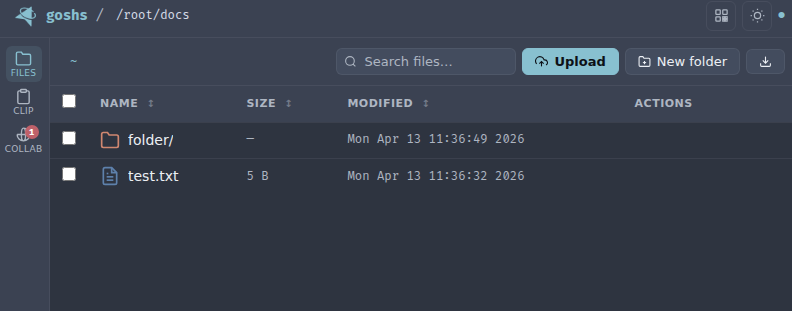
You can either use the UI and click the download symbol of any file you want to download or you could use a command line tool like curl or wget to retrieve the file on a command line. If you click the file name it could be opened in the browser to view the content directly depending on the file type.
Resumable & seekable downloads
Downloads support HTTP Range requests, so transfers can be paused and resumed instead of restarting from the beginning — useful for large files over flaky links. The same mechanism lets browsers seek within media files (audio/video) served by goshs without downloading the whole file first.
Browsers and download managers use this automatically. On the command line you can request a byte range explicitly:
Range support also applies to shared single-file links and captured SMTP attachments.
Retrieve json
You can retrieve the file listing in json format like so curl -s localhost:8000/?json | jq.
Bulk download files
You can also select several or all files by using the checkboxes. Then you can click the download button that gets shown to retrieve the files as a compressed archive (zip file).